

PandaVPN Free for iPhone 18: Download & Setup Guide
 Sharon
  2026.10.22
Looking for a free VPN for your iPhone 18? PandaVPN Lite may be a convenient option for users who want to protect their online connections without committing to a paid subscription. With a straightforward setup process, you can install the app, connect to an available VPN server, and enjoy a more private browsing experience on your iPhone.
In this guide, we’ll explain how to download PandaVPN Lite, sign in, and connect to a server on your iPhone 18. We’ll also compare PandaVPN Lite with PandaVPN Pro, explain how to check iOS compatibility, and introduce the latest advertised subscription offer for users who want additional VPN features.

How to Use PandaVPN for Free on iPhone 18
Before installing the app, make sure your iPhone is running a compatible version of iOS. You can check the app’s current system requirements on its App Store listing or through the official PandaVPN iOS download page.
Step 1: Download & Install PandaVPN Lite
- Open the App Store on your iPhone 18.
- Search for PandaVPN Lite or visit the official PandaVPN iOS download page for the latest installation instructions.
- Check the app’s compatibility requirements and choose the version that suits your needs. PandaVPN Lite is intended for users looking for free VPN access, while PandaVPN Pro offers paid subscription options.
- Tap Get to download and install the app if it is available in your region.
Note: App availability may vary by country or region. If PandaVPN does not appear in your App Store, check its regional availability and consult the official download instructions before changing your Apple Account country or region. Changing regions may affect subscriptions and purchases and may require additional account information.
Step 2: Sign In to PandaVPN
After installation, open the PandaVPN app and follow the on-screen instructions to get started.
If your version automatically generates a numeric account ID when you first launch the app, follow the prompts to activate or access your account. The exact sign-in process may vary depending on the app version.
Once you’ve completed the initial setup, proceed to the server selection screen.
Step 3: Connect to a Free VPN Server
Connecting to a VPN server on your iPhone is straightforward.
- Open the server list and select an available free server.
- Alternatively, tap the connection button if automatic server selection is supported.
- Approve the iOS VPN configuration request if prompted.
- Wait for the app to confirm that your VPN connection is active.
Once connected, PandaVPN can help encrypt network traffic between your iPhone and the VPN server while masking your public IP address. You can then browse the internet through the VPN connection, subject to server availability and the policies of individual websites and online services.
For the best experience, choose a server with a stable connection and a suitable location for your needs. If a server feels slow or becomes unstable, try another available server.
PandaVPN Lite vs. PandaVPN Pro: Which Version Should You Choose?
When searching for a PandaVPN Lite download, it’s helpful to understand the difference between the free and paid versions.
PandaVPN Lite is designed for users who want to try VPN protection without purchasing a subscription. Depending on the current app version and regional availability, free access may include advertisements and a selection of free servers.
PandaVPN Pro is designed for users who want access to paid subscription features and additional VPN options. Before upgrading, review the current plan details to confirm which servers, features, and usage benefits are included.
If you only need occasional VPN access, PandaVPN Lite may be a suitable starting point. If you use a VPN regularly for browsing, streaming, or other online activities, you may want to compare the available Pro plans and decide whether a paid subscription better meets your needs.
For the latest app versions and installation instructions, visit the official PandaVPN iOS download page.
Want More from PandaVPN? Explore PandaVPN Pro
Free VPN access can be a useful starting point, but some users may prefer a paid plan with additional features and server options. If you’re looking for a more comprehensive VPN experience on your iPhone, PandaVPN Pro is worth considering.
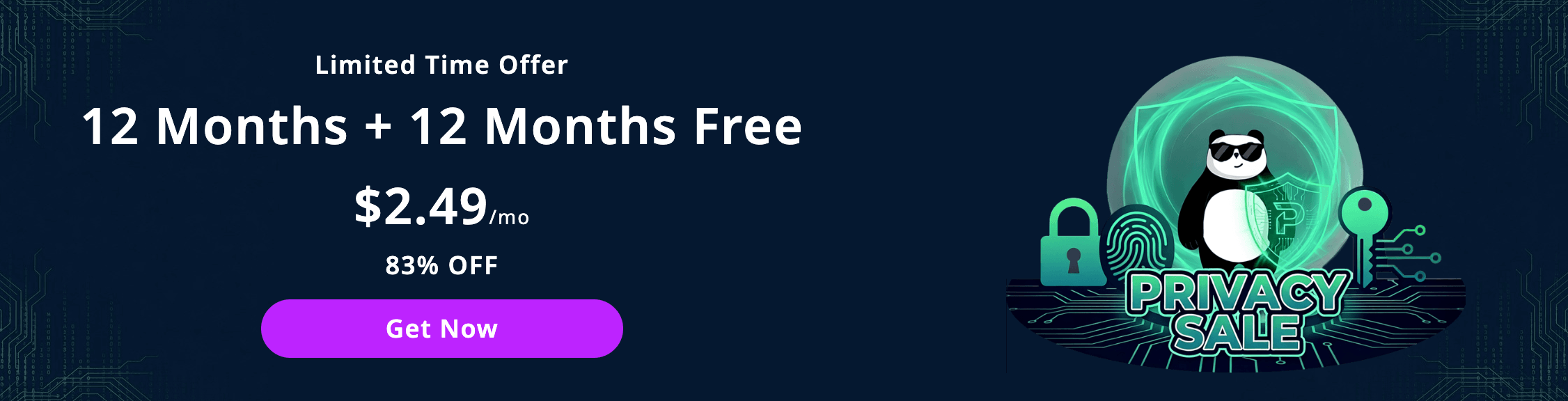
The advertised promotional offer includes:
- Subscription offer: 12 Months + 12 Months Free
- Advertised price: $2.49 per month
- Money-back guarantee: 7 days, subject to the applicable terms and conditions
The 12 Months + 12 Months Free offer is designed to provide an extended subscription period for eligible purchases. Before completing your order, check the official checkout page for the total amount due, promotional eligibility, renewal price, and subscription terms.
The advertised monthly price may represent the effective monthly cost of the promotional plan rather than the amount charged each month.
PandaVPN also advertises a 7-day money-back guarantee for eligible purchases. Review the applicable refund policy before subscribing to understand the conditions and eligibility requirements.
Ready to explore the available options? Visit the official PandaVPN website to review current plans and offers.
Frequently Asked Questions About PandaVPN for iPhone 18
1. Is PandaVPN free to use on iPhone 18?
PandaVPN Lite is intended for users seeking free VPN access. Depending on the current app version and region, it may provide ad-supported access to selected free servers. Check the official iOS download page for the latest availability and feature details.
2. How do I download PandaVPN Lite on iPhone 18?
Open the App Store and search for PandaVPN Lite. If the app is available in your region and compatible with your iOS version, tap Get to install it. You can also visit the official PandaVPN iOS download page for further instructions.
3. Does PandaVPN support iPhone 18?
Compatibility depends on the iOS versions supported by the current PandaVPN release. Check the App Store listing or the official PandaVPN website for the latest system requirements before installing the app on your iPhone 18.
4. Do I need to create an account to use PandaVPN?
The sign-in process depends on the app version. If PandaVPN automatically generates a numeric account ID during your first launch, follow the on-screen instructions to access the service. Check the current app guidance for any additional account requirements.
5. What is the difference between PandaVPN Lite and PandaVPN Pro?
PandaVPN Lite is intended for users looking for free VPN access, while PandaVPN Pro offers paid subscription options. Available servers, features, and usage conditions may differ. Review the current product details before deciding which version to use.
6. How much does PandaVPN Pro cost?
PandaVPN advertises a promotional offer of 12 Months + 12 Months Free, with an effective price of $2.49 per month. The actual amount charged depends on the applicable offer and checkout terms. Visit the official website to confirm the current price, total payment, and renewal conditions.
7. Does PandaVPN offer a money-back guarantee?
PandaVPN advertises a 7-day money-back guarantee for eligible purchases. Terms and eligibility requirements may apply, so review the current refund policy before completing your subscription.
8. Can PandaVPN help me access geo-restricted content on my iPhone 18?
A VPN can change the public IP address visible to websites and may help you access content available in other regions. However, access depends on the service’s VPN detection systems, server availability, regional restrictions, and terms of use. A VPN cannot guarantee access to every geo-restricted website or streaming platform.
9. Is PandaVPN suitable for everyday browsing on an iPhone?
A VPN can help protect network traffic between your device and the VPN server, particularly when you’re using networks you don’t fully trust. Your overall security also depends on factors such as HTTPS, device settings, app permissions, and safe browsing habits.
Get Started with PandaVPN on Your iPhone 18
Setting up PandaVPN on your iPhone 18 starts with choosing a compatible app version, installing it, and connecting to an available server. If you’re looking for free VPN access, PandaVPN Lite may be a suitable option to explore. If you need additional features, compare the available PandaVPN Pro plans before upgrading.
Visit the official PandaVPN iOS download page to check the latest installation instructions and compatibility information, or explore the PandaVPN official website for current subscription offers.

Related Posts

Featured Posts